SmartLock TV is an app for devices based on Android TV OS (from version 9 and later). It allows you to lock TV screen and control access over time. The software protects against unauthorized use and helps you work only through paid sessions without additional devices.
How the app works
When the app is active, it locks the screen and blocks TV control until a session starts.
The status is displayed on the screen:
- Available — no upcoming reservations. The TV is ready to be used, but you can't control it yet.
- Available until 11 p.m. — there is a future reservation. The session can only last until the specified time.
- Unavailable — the TV is in a service mode or there is no connection to the server. You cannot use the TV until the issue is resolved.
High access
The administrator needs this mode to control the TV manually. For example, to open the app, change settings, or check if the TV is working properly.
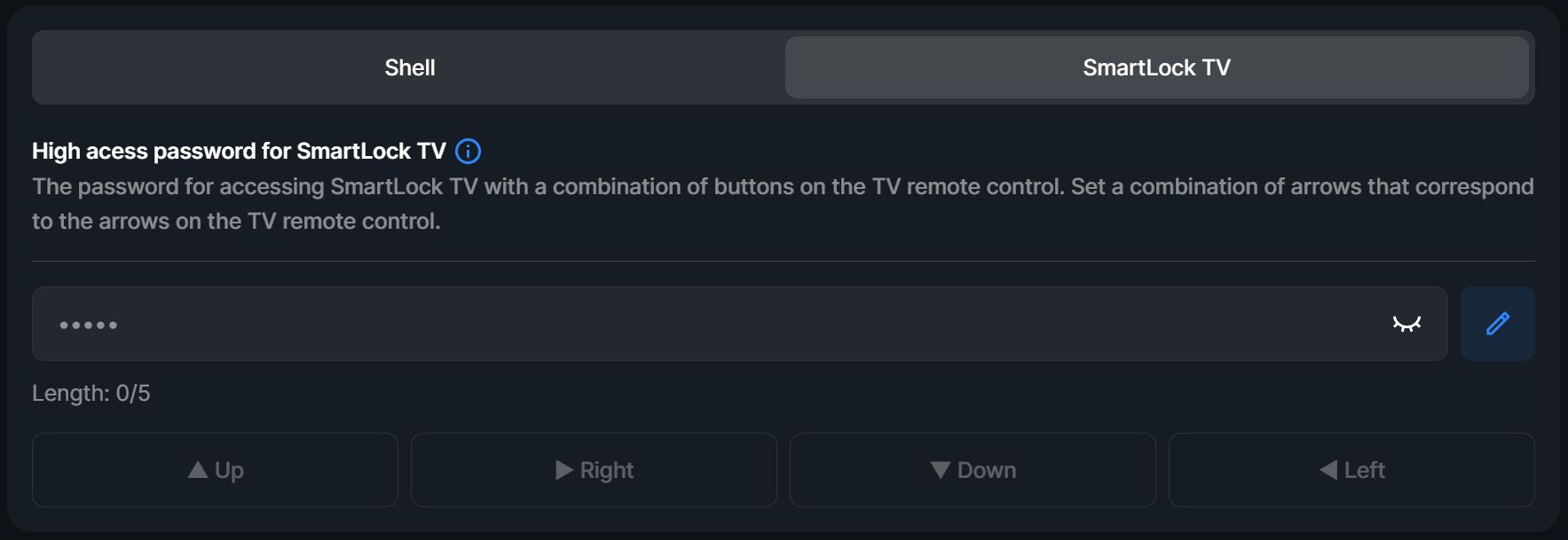
- The default high access password is⯇⯇▼▲▶. We recommend you to change the default high access password.
- When this mode is enabled, all buttons on the TV remote are temporarily unlocked.
- A notification High access mode is enabled appears in the bottom left corner.
- The mode is active for 1 minute when enabled from the TV remote and 10 minutes when enabled from the admin panel. After that, the lock is re-enabled.
Installation and connection
App installation
- Open Google Play on the TV and install SmartLock TV. After installation, select Yes and grant permission to run above all windows in the message that appears.
- If Google Play is not available, install the app via an APK-file (you can request it by contacting SmartShell technical support).
Connecting the TV
- Launch the SmartLock TV app on the TV.
- Get the PIN code for this device in the Admin panel:
- Right-click on the gaming station → PC Control → Generate PIN code.
- The PIN code is valid for 1 hour.
- Enter this PIN code in the SmartLock TV app.
After linking the device, the lock screen will start displaying availability statuses.
IMPORTANT!
At this stage, you can launch test mode without entering a PIN code. The test mode allows you see how the application works.
Starting and ending sessions
Option A. With the help of the gaming center administrator.
- The client purchases a pass from the administrator.
- The administrator manually starts a session in the Admin panel for the desired TV.
Option B. Using online booking feature in the SmartGamer app.
- The client books a time slot in the SmartGamer app.
- Before the session starts, the screen will display: Available until [reservation start time].
Option C. Self-purchase of a pass by the client in the SmartGamer app.
- The client scans the QR code via the SmartGamer mobile app.
- Then the client pays for the pass using funds from their deposit account.
Notifications
The system notifies clients when the session is about to end:
- 5 minutes in advance;
- 1 minute in advance;
- at the moment the session ends.
The administrator can also send a personal message for the client. For example, “Please, be quiet.”